Showing posts with label Excel Tips. Show all posts

Sunday, April 26, 2020

Grab These Expert Excel Training Courses For Only $50

Microsoft Excel is hands-down one of today's most essential business tools, and understanding its ins and outs can take you far in practically any career. Want to make use of your free time and learn something that can pay off big down the road? Get the Excel training you need with The Premium A to Z Microsoft Excel Bundle, now discounted by over 90 percent today.
The Premium A to Z Microsoft Bundle is a web-based training resource geared towards people who are already working. The content is delivered entirely via the web so there are no actual classroom sessions to attend. You can literally log in at any time and train when you want to. And, as the content will be accessible for life, there’s no rush to complete it either. That makes it an ideal post-secondary training option as it fits with any existing work schedule, no matter how busy it is.
Aside from convenience, what really sets this program apart is the quality of instruction that’s offered. The 10-course collection features top-tier instructors including Alan Jarvis and Chris Dutton, both of whom are celebrated online instructors. They have, in fact, trained well over 200,000 people already, which is an amazing feat unto itself. And the training they’ve set up is so accessible that virtually anyone can understand it.
Even a complete beginner with no knowledge of spreadsheets, data analysis, or pivot tables can make sense of the courses here and become an expert. Just make your way through the training, and you'll have the know-how to save time with formulas, visualize valuable data insights in your spreadsheets, and even program your own Excel solutions using VBA.
When you compare this package to similar in-person programs, you’ll immediately notice the benefits. After all, with a flexible schedule, world-class training, and a no-pressure learning environment, students are in a better position to succeed. And, since The Premium A to Z Microsoft Excel Bundle is discounted by over 90 percent to just $49.99, it’ll be sure to fit even the tightest of budgets.
  The Premium A to Z Microsoft Excel Bundle Ft. Alan Jarvis & Chris Dutton - $49.99
More from the PCWorld Shop
Prices are subject to change.
Note: When you purchase something after clicking links in our articles, we may earn a small commission. Read our affiliate link policy for more details.


Exam Prep for Bundle; Microsoft Excel 2013; Complete + ...
New Perspectives Microsoft Office 365 & Excel 2016 + SAM 365 & 2016 Assessments, Trainings, and Projects with 1 MindTap Reader Access Card: Intermediate

Thursday, December 14, 2017

Microsoft ranges up word, Excel, and Outlook with more AI capabilities

Microsoft is adding a bunch of new capabilities to its workplace productiveness suite that are geared toward the usage of laptop gaining knowledge of to help americans get their work done extra efficaciously. Outlook, Excel, and word will all advantage, with new elements rolling out to a limited set of users within the coming months after which increasing to a broader set of americans in a while.
Outlook’s net customer will provide users with an interface if you want to immediately present them responses to questions layered inner emails, while Excel has a new characteristic that means charts and pivot tables. note will get a function in order to assist clients outline acronyms according to information shared within their corporation.

Above: An animation suggests Microsoft Excel’s new insight function.
graphic credit: Microsoft
The information is part of Microsoft’s ongoing push to enhance its productiveness suite for workers by way of offering them with clever features. all the aspects are designed to make it less demanding for individuals to get work executed speedy through decreasing the complexity of tasks interior office 365. They’re also designed to appeal to americans to Microsoft’s cloud productivity service, due to the fact all of these capabilities require processing on the enterprise’s servers.
The chance, besides the fact that children, is that whereas these capabilities sound first rate on paper, they can be just a little rough when the rubber meets the street. Microsoft is planning to roll out these facets to a small community of clients at the beginning, those who have expressed interest in checking out out the latest workplace elements, earlier than unleashing them on the rest of the area, in an attempt to make sure that they work the ultimate they can.
Microsoft isn’t on my own in pushing intelligent productivity capabilities, both: Google has spent time pushing its own computing device researching-based mostly elements interior G Suite, together with help for automatically producing charts and pivot tables. Inbox, Google’s experimental e-mail product that’s concentrated on productiveness, has a marquee wise Reply function that’s alleged to permit users to without delay reply to the content material of emails they obtain by clicking on considered one of three buttons.
The function that Microsoft offers in Outlook is designed to provide individuals more than only one response to an entire electronic mail, for greater advanced messages stuffed with a few questions. anywhere Outlook detects a question, it will supply users with a drop-down menu that comprises a series of immediately generated advised responses, in response to the content of the question.
moreover the question and answer function, Outlook is also dropping clutter, a characteristic that turned into speculated to take unimportant emails and shove them into a separate folder for later analyzing. That ability has now been rolled into the e-mail carrier’s concentrated Inbox function, which continues all of the messages a user receives of their inbox, but splits up how they’re displayed in line with even if Microsoft’s algorithm thinks they’re crucial.
Outlook for iOS clients will also get time to go away notifications, so that you can supply clients with suggestions about once they deserve to head out as a way to attain the subsequent experience on their calendar. It makes use of advice about traffic situations, strolling paths, and are living transit data to give clients an estimate of once they need to get relocating.
Excel will get a brand new Insights function that’s designed to immediately generate charts and pivot tables based on statistics clients enter to the carrier. The feature is meant to deliver shoppers with automated identification of particulars like outliers and tendencies within information that it’s been fed. actually drawing insights out of Excel may also be challenging for people who aren’t consultants at the use of the application, so this provider may additionally help democratize analysis for people who aren’t a part of the pivot table priesthood.
clients who are ill of getting misplaced in a sea of acronyms at work get a new feature in be aware. It tactics the entire files shared within a company the usage of the Microsoft Graph to drag definitions of usual abbreviations, so it’s less complicated for folks to grasp WTF a TPS report is. diverse corporations will get diverse definitions, depending on how americans use acronyms, on account that CYA can suggest different things at distinctive groups.

Friday, November 24, 2017

Everything you need to know about Excel Solver

Solver is a Microsoft Excel add-in software you could use for what-if evaluation. Use Solver to locate an most appropriate (highest or minimal) price for a system in one cellphone — known as the objective cell — field to constraints, or limits, on the values of alternative formula cells on a worksheet. Solver works with a bunch of cells, referred to as decision variables or comfortably variable cells that are used in computing the formulas within the goal and constraint cells. Solver adjusts the values within the determination variable cells to satisfy the limits on constraint cells and produce the outcomes you want for the purpose cellphone.
Put effectively, that you can use Solver to verify the highest or minimal value of one phone by means of altering different cells. for instance, that you may change the volume of your projected promoting funds and see the impact on your projected profit volume.
observe: types of Solver in advance of Excel 2007 noted the purpose mobile because the "target telephone," and the choice variable cells as "altering cells" or "adjustable cells". Many advancements were made to the Solver add-in for Excel 2010, so if you're using Excel 2007 your adventure can be a little diverse.
instance of a Solver assessment
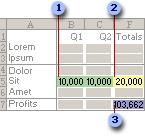
In the following instance, the stage of advertising in every quarter influences the variety of devices sold, not directly settling on the quantity of revenue earnings, the associated prices, and the profit. Solver can change the quarterly budgets for advertising (choice variable cells B5:C5), up to a total price range constraint of $20,000 (telephone F5), until the full income (goal cell F7) reaches the maximum feasible quantity. The values in the variable cells are used to calculate the earnings for each quarter, so they are involving the system goal mobile F7, =SUM (Q1 profit:Q2 profit).
Before Solver evaluation
1. Variable cells
2. restricted mobile
three. aim telephone
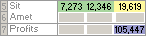
After Solver runs, the new values are as follows.
After Solver evaluation
outline and resolve an issue
  • On the information tab, in the analysis community, click on Solver.Excel Ribbon Image
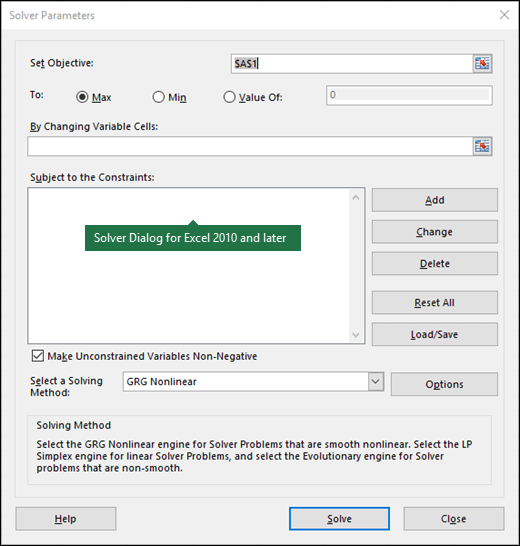
    Image of the Excel 2010+ Solver dialog
  • in the Set objective container, enter a mobilephone reference or identify for the goal telephone. The aim mobilephone need to contain a components.
  • Do one in every of the following:
  • in case you desire the price of the purpose mobilephone to be as massive as possible, click on Max.
  • in case you need the cost of the objective mobile to be as small as possible, click on Min.
  • in case you need the objective mobile to be a definite value, click cost of, and then classification the price within the container.
  • in the by way of altering Variable Cells container, enter a reputation or reference for each and every choice variable cell range. Separate the non-adjoining references with commas. The variable cells need to be connected at once or in some way to the aim phone. which you can specify as much as 200 variable cells.
  • within the subject to the Constraints container, enter any constraints that you need to follow by doing right here:
  • in the Solver Parameters dialog box, click Add.
  • within the phone Reference box, enter the mobilephone reference or identify of the mobilephone range for which you wish to constrain the cost.
  • click on the connection ( <=, =, >=, int, bin, or dif ) that you just desire between the referenced cellphone and the constraint.if you click on int, integer appears within the Constraint container. in case you click on bin, binary appears within the Constraint field. if you click dif, alldifferent appears in the Constraint field.
  • if you select <=, =, or >= for the connection in the Constraint container, category a number, a cell reference or identify, or a system.
  • Do certainly one of right here:
  • To accept the constraint and add another, click on Add.
  • To accept the constraint and return to the Solver Parameters dialog box, click on ok.note    that you could observe the int, bin, and dif relationships best in constraints on decision variable cells.
    that you may trade or delete an latest constraint via doing here:
  • within the Solver Parameters dialog box, click the constraint that you wish to alternate or delete.
  • click on exchange after which make your adjustments, or click on Delete.
  • click solve and do one in every of right here:
  • To keep the answer values on the worksheet, in the Solver results dialog field, click keep Solver answer.
  • To restore the long-established values earlier than you clicked clear up, click restore fashioned Values.
  • that you could interrupt the answer procedure by pressing Esc. Excel recalculates the worksheet with the ultimate values that are found for the choice variable cells.
  • To create a report it's according to your solution after Solver finds a solution, that you can click on a record type within the studies box after which click ok. The record is created on a new worksheet on your workbook. If Solver would not discover an answer, most effective certain reviews or no studies can be found.
  • To store your determination variable cell values as a situation so you might display later, click keep scenario within the Solver consequences dialog box, after which category a name for the scenario in the situation name field.
  • Step via Solver trial options
  • After you outline an issue, click on alternatives within the Solver Parameters dialog field.
  • within the alternate options dialog container, select the show iteration outcomes check field to look the values of every trial solution, after which click ok.
  • in the Solver Parameters dialog container, click on remedy.
  • within the reveal Trial answer dialog box, do one in every of the following:
  • To stop the answer method and display the Solver results dialog box, click cease.
  • To continue the answer process and screen the subsequent trial solution, click on continue.
  • alternate how Solver finds options
  • in the Solver Parameters dialog field, click alternatives.
  • select or enter values for any of the alternatives on the All methods, GRG Nonlinear, and Evolutionary tabs in the dialog box.
  • save or load a problem mannequin
  • in the Solver Parameters dialog container, click on Load/save.
  • Enter a telephone latitude for the mannequin enviornment, and click either retailer or Load.
    in case you keep a mannequin, enter the reference for the primary cellphone of a vertical latitude of empty cells in which you want to vicinity the problem model. when you load a model, enter the reference for the total latitude of cells that incorporates the difficulty mannequin.
    Tip: that you can shop the ultimate selections in the Solver Parameters dialog container with a worksheet via saving the workbook. each worksheet in a workbook might also have its own Solver decisions, and all of them are saved. which you could additionally outline more than one problem for a worksheet with the aid of clicking Load/keep to shop complications in my view.
  • fixing methods used by Solver
    that you would be able to opt for any of here three algorithms or fixing methods in the Solver Parameters dialog container:
  • Generalized reduced Gradient (GRG) Nonlinear    Use for problems that are easy nonlinear.
  • LP Simplex    Use for complications that are linear.
  • Evolutionary    Use for issues which are non-clean.
  • illustration of a Solver contrast
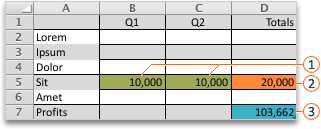
    In right here instance, the level of advertising in each and every quarter impacts the variety of instruments offered, ultimately deciding on the amount of earnings income, the associated expenses, and the earnings. Solver can trade the quarterly budgets for advertising (choice variable cells B5:C5), up to a complete price range constraint of $20,000 (cellphone D5), unless the total earnings (purpose telephone D7) reaches the highest feasible amount. The values in the variable cells are used to calculate the earnings for each and every quarter, so that they are concerning the system purpose telephone D7, =SUM(Q1 profit:Q2 earnings).
    Example Solver evaluation
    Callout 1 Variable cells
    Callout 2 limited mobilephone
    Callout 3  objective telephone
    After Solver runs, the brand new values are as follows.
    Example Solver evaluation with new values
    define and clear up an issue
  • In Excel 2016 for Mac: click information > Solver.

    Solver
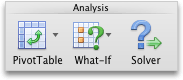
    In Excel for Mac 2011: click on the records tab, below evaluation, click Solver.
    Data tab, Analysis group, Solver Add-In
  • In Set purpose, enter a cell reference or identify for the purpose cellphone.
    notice: The aim phone should contain a components.
  • Do certainly one of here:
    To
    do that
    Make the value of the aim cellphone as gigantic as viable
    click on Max.
    Make the value of the objective mobile as small as possible
    click on Min.
    Set the purpose phone to a certain price
    click on value Of, after which category the value within the container.
  • in the by way of altering Variable Cells box, enter a name or reference for each resolution variable cellphone range. Separate the nonadjacent references with commas.
    The variable cells must be linked directly or ultimately to the objective mobile. which you could specify up to 200 variable cells.
  • in the area to the Constraints field, add any constraints that you simply wish to observe.
    to add a constraint, follow these steps:
  • within the Solver Parameters dialog box, click Add.
  • within the mobilephone Reference field, enter the cell reference or identify of the mobilephone range for which you need to constrain the value.
  • On the <= relationship pop-up menu, select the relationship that you desire between the referenced mobilephone and the constraint.if you choose <=, =, or >=, within the Constraint container, type a host, a mobile reference or name, or a method.
    be aware: which you can simplest observe the int, bin, and dif relationships in constraints on decision variable cells.
  • Do one of right here:
  • To
    try this
    accept the constraint and add a further
    click on Add.
    accept the constraint and return to the Solver Parameters dialog container
    click ok.
  • click clear up, and then do one in all the following:
    To
    do this
    retain the solution values on the sheet
    click on preserve Solver solution in the Solver consequences dialog container.
    fix the common records
    click fix usual Values.
  • Notes: 
  • To interrupt the solution process, press ESC . Excel recalculates the sheet with the remaining values which are found for the adjustable cells.
  • To create a document it is in line with your solution after Solver finds a solution, you can click a report type in the reports field after which click good enough. The report is created on a new sheet on your workbook. If Solver does not discover a solution, the option to create a document is unavailable.
  • To save your adjusting mobile values as a scenario for you to monitor later, click on shop situation within the Solver effects dialog field, and then class a reputation for the situation within the state of affairs name box.
  • Step via Solver trial options
  • In Excel 2016 for Mac: click facts > Solver.
    Solver
    In Excel for Mac 2011: click the records tab, below analysis, click on Solver.
    Data tab, Analysis group, Solver Add-In
  • After you outline an issue, in the Solver Parameters dialog container, click on alternate options.
  • choose the display iteration effects determine field to peer the values of each and every trial solution, and then click on adequate.
  • in the Solver Parameters dialog box, click clear up.
  • within the display Trial answer dialog container, do certainly one of the following:
    To
    do this
    stop the solution procedure and screen the Solver outcomes dialog box
    click on stop.
    proceed the answer process and monitor the subsequent trial solution
    click proceed.
  • trade how Solver finds options
  • In Excel 2016 for Mac: click information > Solver.
    Solver
    In Excel for Mac 2011: click on the records tab, under evaluation, click on Solver.
    Data tab, Analysis group, Solver Add-In
  • click alternatives, and then within the options or Solver alternatives dialog box, choose one or greater of right here alternate options:
    To
    do this
    Set answer time and iterations
    On the All methods tab, below solving Limits, within the Max Time (Seconds) box, type the number of seconds that you simply need to permit for the answer time. Then, in the Iterations field, class the maximum number of iterations that you simply are looking to enable.
    observe: If the answer method reaches the maximum time or number of iterations before Solver finds a solution, Solver shows the exhibit Trial solution dialog field.
    Set the degree of precision
    On the All methods tab, in the Constraint Precision field, classification the diploma of precision that you simply desire. The smaller the quantity, the higher the precision.
    Set the degree of convergence
    On the GRG Nonlinear or Evolutionary tab, within the Convergence container, class the volume of relative alternate that you just wish to enable within the remaining 5 iterations before Solver stops with an answer. The smaller the quantity, the less relative trade is allowed.
  • click good enough.
  • within the Solver Parameters dialog box, click remedy or close.
  • store or load an issue model
  • In Excel 2016 for Mac: click records > Solver.
    Solver
    In Excel for Mac 2011: click on the data tab, below analysis, click on Solver.
    Data tab, Analysis group, Solver Add-In
  • click Load/save, enter a telephone latitude for the model area, after which click both shop or Load.
    in case you save a mannequin, enter the reference for the first telephone of a vertical latitude of empty cells by which you are looking to place the difficulty model. when you load a model, enter the reference for the entire range of cells that incorporates the difficulty model.
    Tip: you can keep the closing selections in the Solver Parameters dialog container with a sheet by using saving the workbook. each and every sheet in a workbook might also have its own Solver decisions, and all of them are saved. that you would be able to also outline multiple problem for a sheet by using clicking Load/shop to keep problems for my part.
  • fixing methods used by using Solver
  • In Excel 2016 for Mac: click on records > Solver.
    Solver
    In Excel for Mac 2011: click the records tab, below analysis, click Solver.
    Data tab, Analysis group, Solver Add-In
  • On the select a fixing formulation pop-up menu, opt for one in all the following:
  • fixing formulation
    Description
    GRG (Generalized decreased Gradient) Nonlinear
    The default choice, for fashions the usage of most Excel functions other than IF, choose, look up and different “step” features.
    Simplex LP
    Use this formula for linear programming problems. Your model may still use SUM, SUMPRODUCT, + - and * in formulation that rely on the variable cells.
    Evolutionary
    This components, in line with genetic algorithms, is most fulfilling when your model makes use of IF, select, or look up with arguments that rely upon the variable cells.
    note: portions of the Solver software code are copyright 1990-2010 by means of Frontline techniques, Inc. portions are copyright 1989 through most useful methods, Inc.
    greater help on the usage of Solver
    For more detailed support on Solver contact:
    Frontline techniques, Inc.P.O. box 4288Incline Village, NV 89450-4288(775) 831-0300Web web site: http://www.solver.comE-mail: information@solver.comSolver assist at www.solver.com.
    portions of the Solver software code are copyright 1990-2009 by way of Frontline systems, Inc. portions are copyright 1989 via most useful strategies, Inc.
    need more assist?
    which you can at all times ask an expert in the Excel Tech group, get assist in the solutions group, or indicate a brand new feature or development on Excel user Voice.
    See also

    Wednesday, July 12, 2017

    creating a simple Joyplot in Excel – Tutorial


    Over on Twitter, I got here across this fascinating chart, aptly titled – Joyplot. it is the type of chart that makes you all curious and awed. So I did what any Excel nerd would do. Recreated it in Excel of direction. This submit takes you via the method.
    top time for activities and amusement #dataviz. About time for a joyplot; might do a write-up on them. #rstats code at https://t.co/Q2AgW068Wa pic.twitter.com/SVT6pkB2hB
    — Henrik Lindberg (@hnrklndbrg) July 8, 2017
    First let me share the final outcomes.
    Joyplot in Excel – peak time of the day for activities and leisure
    right here is the final overlapped area chart with just a little of formatting thrown in. it is an attractive close imitation of Henrik’s customary chart. click on it to amplify.
    joyplot-in-excel
    creating Joyplot in Excel – Tutorial
    As that you may wager, the chart is a simply an overlapped area chart (ie each and every area sits behind another, in contrast to stacked enviornment chart where they are umm, neatly, stacked!)
    Let’s delivery with a glance at facts. Henrik’s original statistics has 10,656 rows, every row containing recreation identify, time and p value – how a whole lot survey respondents enjoyed [@activity] at the moment.
    here's a photo of first few rows.
    joyplot-data
    Scrubbing and re-arranging the records
    As you can see, whereas this structure is brilliant for storing, it is very tedious if we wish to make one chart with all sequence. So let’s scrub.

  • We need to determine if an endeavor may still be included or now not. i am using the equal standards as Henrik’s. Exclude actions with p value less than 0.003 or endeavor title “taking part in activities n.e.c. *”  (no longer in different places categorised)
  • To do this, we first pivot the information on pastime and max(p). Then filter this pivot two ways – max(p) >=0.003 and label no longer equal  enjoying sports n.e.c. * Tip: You may wish to allow dissimilar filters per field within the box settings of row labels.
  • we will emerge as with 28 actions.
  • Then add a helper column to common desk that looks up the pivot and tells if an undertaking should still be protected or no longer
  • Add two more columns to fashioned table to tell height time and modified time. this can support us in rearranging and sorting the facts. Modified time just strikes time by means of three hours (Henrik’s chart is plotted from 3AM to 3AM). At this stage our facts feels like this:joyplot-data-extra-columns
  • Now, pivot the facts once once again. This time,
  • exclude activities by using record filter on consist of? column.
  • set up top and endeavor in row labels enviornment, modified time in column labels enviornment and p in values enviornment.
  • organize the report in tabular structure, flip off sub-totals.
  • We get this:rearranged-data-with-pivot-joyplot
  • Calculate normalized values by means of dividing every p price with maximum p value for that pastime. we are able to use a further latitude of 28×288 cells to do this. We get this:normalized-values
  • The next 2 steps can also look puzzling. it will turn into clear once you appear at the charts.
  • outline an offset price. beginning with 0.5. which you can alternate this later. In a separate 28×288 phone range, calculate gaps by way of multiplying offset with place of an recreation. some thing like this:gaps-joyplot
  • Now, at last calculate activity + hole values by way of adding up respective cells in every of the 28×288 tiers. We get this:actual-plus-gap-values-joyplot

  • At this stage, our statistics is a shape ready for visualizing.
    creating and formatting overlapped enviornment chart
    The chart creation process has 5 steps.

  • choose the 28×288 latitude of cells created in step 7 and insert an overlapped enviornment chart.
  • Now, reproduction the gaps latitude (created in step 6 above) and paste them on to enviornment chart as new collection (just ctrl+c your statistics and select the chart, press ctrl+v)
  • alter the order of sequence so that every pastime is sandwiched by accurately named hole sequence
  • Tip: adjusting fifty six series is painful with the chart select records > stream sequence up/down buttons. in its place, simply select the collection, analyze system bar. The series formulation has final parameter as order. alternate this number. it is handy to determine the number once you try a couple of.
  • exchange all gap collection fill colour to white. This straight creates the floating enviornment chart impact.
  • alternate the colorations of undertaking sequence. follow white / off-white border to those sequence. Your joyplot is equipped.

  • short overview of the chart advent manner:
    Let’s assess the outcome of every these 5 steps with a smaller dataset so that you can see how everything matches collectively. right here is the records for this example:
    sample-data-for-chart-tutorial-joyplot

  • Create an overlapped enviornment chart with activity+gaps information. We get this:sample-joyplot-step-1
  • Add gaps as new series to chart. You get this:sample-joyplot-step-2
  • movement the hole series in order that they sandwich undertaking sequence. Use Chart records > movement sequence up/down buttons or collection componentssample-joyplot-step-3
  • observe white color fill formatting for gap sequence. This creates floating area chart effect as below:sample-joyplot-step-4
  • finally, format the chart by way of practice some colours and border formatting and so on.sample-joyplot-step-5

  • So there you go. The final outcomes does appear happy.
    joyplot-in-excel
    alternate options to Joyplot
    while joyplot is remarkable, it is not handy to make. happily, there are a number of less complicated alternatives that we can whip up in Excel as quickly as you've got both the pivot or normalized values.  under I even have shown two such examples. read about sparklines or conditional formatting heatmaps for more.
    Joyplot choice – the usage of sparklines:
    Tip: to get axis for your sparkline, simply class the instances separated by a single house. Then go to layout phone (ctrl+1) and set horizontal alignment to dispensed. Viola, Excel will fill the cell by adjusting areas.
    joyplot-alternative-sparklines
    Joyplot choice – Conditional Formatting Heatmap 
    joyplot-alternative-heatmap
    download Joyplot Workbook
    click here to download Joyplot Excel workbook. determine the records scrubbing formulas, pivot and chart settings to learn how here is created.
    if you're typical with R, then go thru Henrik’s R code. it's much shorter than the Excel gymnastics we did with circular pivot table referencing. That noted, one of the most statistics re-association may well be executed with same ease in vigour query too.
    Your ideas on Joyplot?
    The best step we missed in Excel implementation is relocating typical smoothing of the enviornment charts. It will also be without problems delivered as a step between 3 and four in statistics stage.
    How do you like Joyplot? Would you create something like this for your company / very own records? Share your reports and ideas in the feedback section.

    Sunday, April 9, 2017

    How to use Solver in Excel with examples

    the tutorial explains how to add and the place to find Solver in distinctive Excel types, from 2016 to 2003. Step-via-step examples display how to use Excel Solver to discover ideal solutions for linear programming and different kinds of issues.
    every person knows that Microsoft Excel includes lots of beneficial functions and powerful equipment that may save you hours of calculations. but did you know that it also has a tool that can support you discover most effective options for determination issues?
    during this tutorial, we are going to cover all standard aspects of the Excel Solver add-in and supply a step-with the aid of-step guide on a way to use it most without problems.
    what is Excel Solver?
    Excel Solver belongs to a unique set of commands often called What-if analysis equipment. it's primarily purposed for simulation and optimization of numerous business and engineering fashions.
    The Excel Solver add-in is principally beneficial for solving linear programming problems, aka linear optimization complications, and therefore is now and again known as a linear programming solver. apart from that, it might probably handle clean nonlinear and non-easy issues. Please see Excel Solver algorithms for more particulars.
    whereas Excel Solver can't crack each possible difficulty, it is a good suggestion when coping with every kind of optimization complications the place you need to make the most excellent determination. as an example, it may possibly support you maximize the return of funding, opt for the top of the line finances for your promoting campaign, make the optimum work agenda for your personnel, lower the birth prices, and the like.
    how to add Solver to Excel
    The Solver add-in is protected with all versions of Microsoft Excel beginning with 2003, but it surely isn't enabled by using default.
    to add Solver to your Excel, function here steps:


  • In Excel 2010, Excel 2013, and Excel 2016, click File > options.In Excel 2007, click the Microsoft office button, after which click on Excel alternatives.
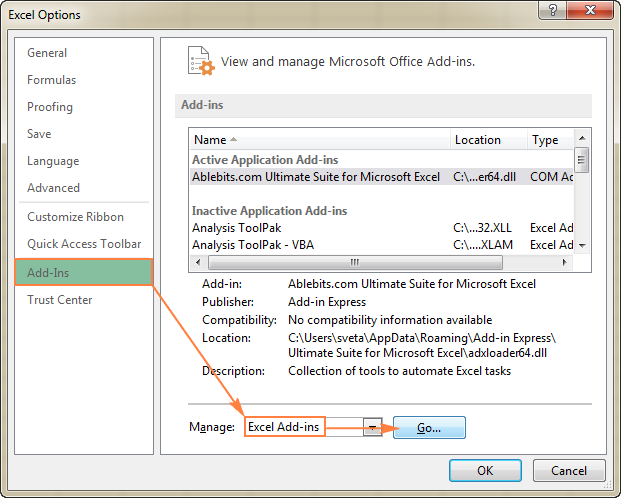
  • in the Excel options dialog, click on Add-Ins on the left sidebar, make sure Excel Add-ins is chosen in the control container at the bottom of the window, and click on Go.Open the Excel Options dialog to get to the Excel Add-ins list.
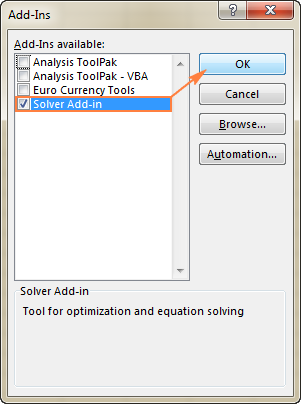
  • within the Add-Ins dialog field, investigate the Solver Add-in box, and click on adequate:Enable the Solver Add-in.

  • To get Solver on Excel 2003, go to the tools menu, and click Add-Ins. in the Add-Ins obtainable checklist, investigate the Solver Add-in container, and click on good enough.
    observe. If Excel shows a message that the Solver Add-in is not currently installed in your desktop, click yes to installation it.
    where is Solver in Excel 2016, 2013, 2010 or 2007?
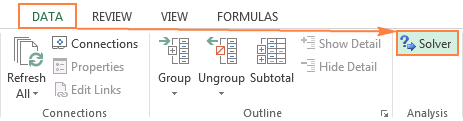
    in the up to date models of Excel, the Solver button seems on the facts tab, in the evaluation group:The Solver button in Excel 2016, 2013, 2010 or 2007
    the place is Solver in Excel 2003?
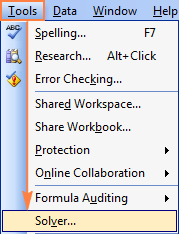
    After the Solver Add-in is loaded to Excel 2003, its command is brought to the tools menu:Solver in Excel 2003
    Now that you understand the place to locate Solver in Excel, open a new worksheet and let's get began!
    be aware. The examples discussed in this tutorial use Solver in Excel 2013. when you've got an additional Excel version, the screenshots may not fit your edition exactly, although the Solver functionality is basically the same.
    how to use Solver in Excel
    before working the Excel Solver add-in, formulate the mannequin you wish to remedy in a worksheet. in this illustration, let's locate an answer for right here standard optimization issue.
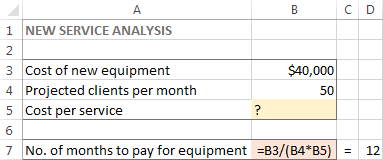
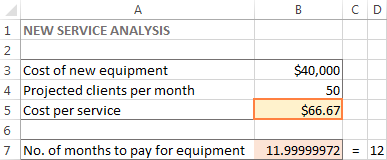
    issue. Supposing, you are the owner of a elegance salon and also you are planning on featuring a new carrier to your purchasers. For this, you need to purchase a new gadget that costs $40,000, which may still be paid by way of instalments within 12 months.
    goal: Calculate the minimal charge per provider on the way to will let you pay for the new machine in the distinctive timeframe.
    For this task, I've created the following model:A simple optimization model to solve
    And now, let's examine how Excel Solver can locate an answer for this difficulty.
    1. Run Excel Solver
    On the records tab, in the evaluation group, click the Solver button.
    2. define the issue
    The Solver Parameters window will open the place you ought to installation the three simple components:


  • purpose mobilephone
  • Variable cells
  • Constraints

  • exactly what does Excel Solver do with the above parameters? It finds the most reliable price (highest, minimal or exact) for the formulation in the objective phone by way of changing the values within the Variable cells, and field to limitations within the Constraints cells.
    goal
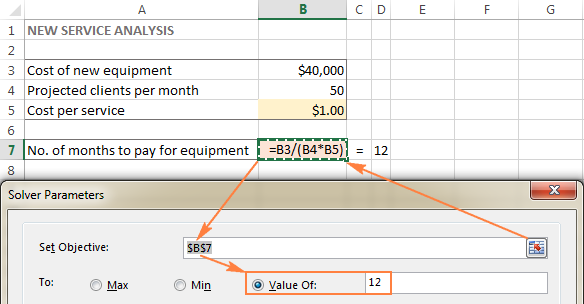
    The aim cellphone (target mobile in earlier Excel types) is the mobile containing a formulation that represents the purpose, or intention, of the problem. The objective will also be to maximise, minimize, or obtain some target value.
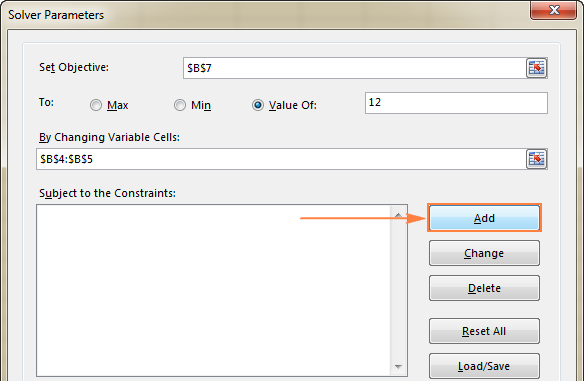
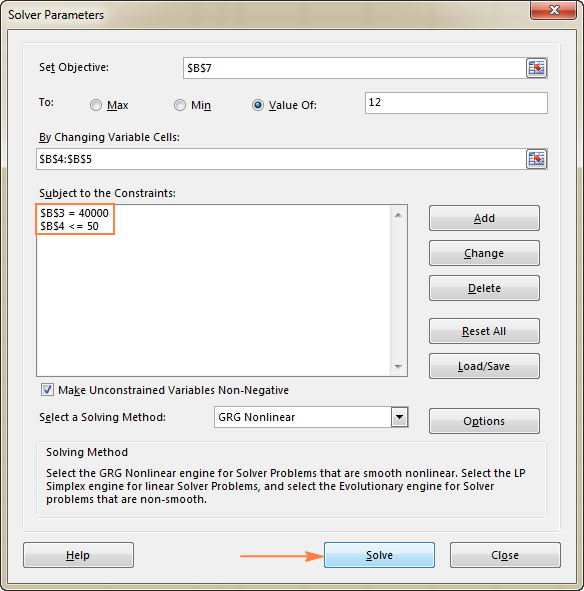
    during this instance, the goal cell is B7, which calculates the price time period using the method =B3/(B4*B5) and the outcome of the components should still be equal to 12:Setting the objective
    Variable cells
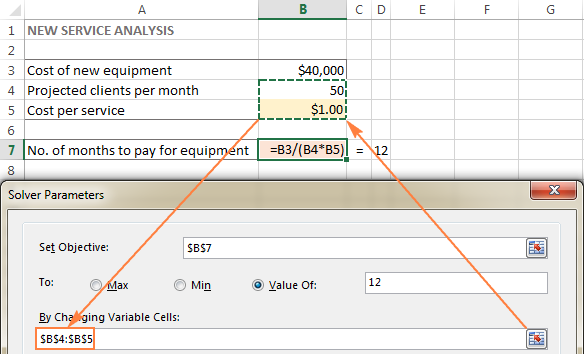
    Variable cells (changing cells or Adjustable cells in past models) are cells that include variable records that will also be changed to achieve the purpose. Excel Solver allows specifying as much as 200 variable cells.
    during this illustration, we now have a couple of cells whose values can also be changed:


  • Projected shoppers per month (B4) that should still be less than or equal to 50; and
  • can charge per carrier (B5) that we desire Excel Solver to calculate.

  • Specifying Variable cells
    Tip. If the variable cells or levels on your mannequin are non-adjacent, opt for the first telephone or latitude, and then press and dangle the Ctrl key whereas making a choice on other cells and/or tiers. Or, type the levels manually, separated with commas.
    Constraints
    The Excel Solver Constrains are restrictions or limits of the viable options to the problem. to position it otherwise, constraints are the conditions that ought to be met.
    so as to add a constraint(s), do here:


  • click on the Add button correct to the "field to the Constraints" container.

  • Adding a constraint


  • in the Constraint window, enter a constraint.
  • click the Add button so as to add the constraint to the list.

  • Click the Add button to add the constraint to the list.


  • proceed entering different constraints.
  • upon getting entered the ultimate constraint, click on ok to return to the main Solver Parameters window.

  • Excel Solver allows for specifying right here relationships between the referenced phone and the constraint.


  • below or equal to, equal to, and improved than or equal to. you put these relationships by means of picking a mobile within the mobilephone Reference container, choosing considered one of right here signals: <=, =, or >=, and then typing a number, cellphone reference / mobilephone name, or formula within the Constraint field (please see the above screenshot).
  • Integer. If the referenced mobilephone should be an integer, opt for int, and the observe integer will seem in the Constraint container.
  • distinctive values. If every phone in the referenced latitude need to include a unique price, choose dif, and the notice AllDifferent will appear within the Constraint field.
  • Binary. if you need to limit a referenced telephone either to 0 or 1, opt for bin, and the note binary will seem within the Constraint box.

  • notice. The int, bin, and dif relationships can most effective be used for constraints on Variable cells.
    To edit or delete an current constraint do the following:


  • in the Solver Parameters dialog box, click on the constraint.
  • To alter the chosen constraint, click alternate and make the adjustments you need.
  • To delete the constraint, click on the Delete button.

  • in this illustration, the constraints are:


  • B3=40000 - cost of the brand new equipment is $forty,000.
  • B4<=50 - the variety of projected patients per thirty days in under 50.

  • Excel Solver Constraints
    three. resolve the difficulty
    After you will have configured the entire parameters, click on the remedy button on the backside of the Solver Parameters window (see the screenshot above) and let the Excel Solver add-in discover the finest solution to your issue.
    reckoning on the mannequin complexity, laptop reminiscence and processor pace, it may possibly take a number of seconds, a couple of minutes, or even just a few hours.
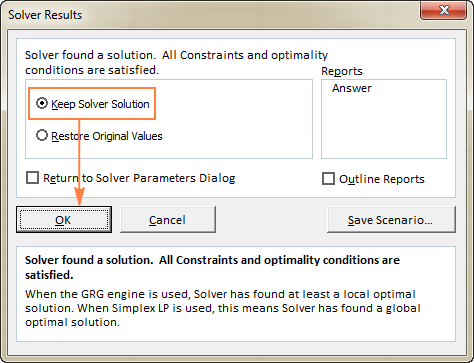
    When Solver has finished processing, it'll display the Solver results dialog window, where you opt for maintain the Solver solution and click on ok:The Solver Results dialog window
    The Solver outcome window will shut and the answer will seem on the worksheet appropriate away.
    during this example, $66.67 seems in cellphone B5, which is the minimal cost per carrier in an effort to help you pay for the new device in one year, provided there are at least 50 purchasers per 30 days:The solution for the problem is found.
    information:


  • If the Excel Solver has been processing a certain difficulty for too long, which you could interrupt the procedure through urgent the Esc key. Excel will recalculate the worksheet with the last values found for the Variable cells.
  • To get greater particulars concerning the solved difficulty, click on a record type in the reviews box, and then click adequate. The record can be created on a brand new worksheet:

  • Excel Solver Reports
    Now that you've acquired the fundamental concept of the way to use Solver in Excel, let's have a closer analyze a pair more examples that might aid you gain more figuring out.
    Excel Solver examples
    under you will locate two more examples of the use of the Excel Solver addin. First, we are able to locate a solution for a familiar puzzle, after which remedy a true-lifestyles linear programming difficulty.
    Excel Solver instance 1 (magic rectangular)
    I agree with each person is common with "magic square" puzzles the place you need to put a collection of numbers in a rectangular in order that all rows, columns and diagonals add up to a undeniable quantity.
    for example, were you aware an answer for the 3x3 rectangular containing numbers from 1 to 9 the place each row, column and diagonal provides up to 15?
    or not it's likely no huge deal to clear up this puzzle via trial and error, however I guess the Solver will discover the solution quicker. Our part of the job is to effectively define the problem.
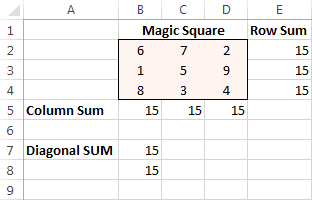
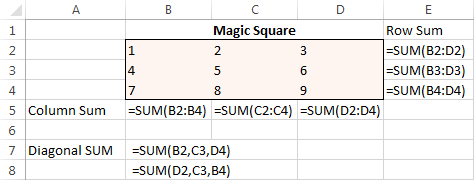
    To begin with, enter the numbers from 1 to 9 in a desk which include three rows and three columns. The Excel Solver doesn't actually need those numbers, however they'll help us visualize the problem. What the Excel Solver add-in in reality needs are the SUM formulas that total every row, column and a pair of diagonals:The magic square puzzle to solve
    With all the formulation are in location, run Solver and deploy right here parameters:


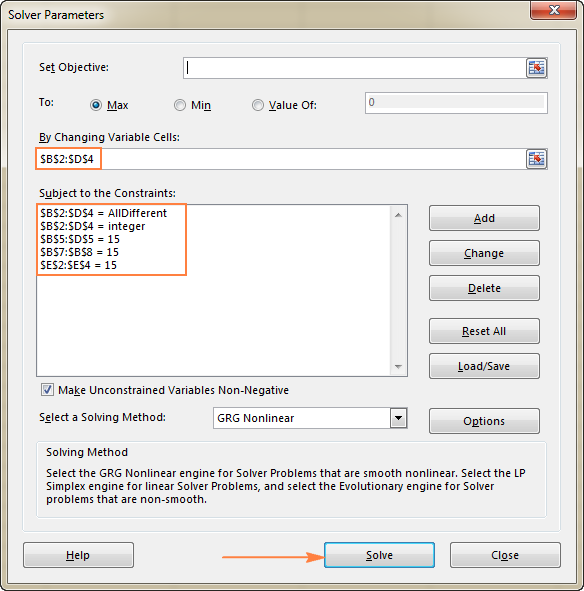
  • Set purpose. in this illustration, we don't should set any aim, so depart this box empty.
  • Variable Cells. We are looking to populate numbers in cells B2 to D4, so opt for the range B2:D4.
  • Constraints. here conditions should still be met:
  • $B$2:$D$four = AllDifferent - the entire Variable cells may still include distinct values.
  • $B$2:$D$4 = integer - the entire Variable cells may still be integers.
  • $B$5:$D$5 = 15 - the sum of values in every column should still equal 15.
  • $E$2:$E$four = 15 - the sum of values in every row should equal 15.
  • $B$7:$B$eight = 15 - the sum of both diagonals may still equal 15.

  • Set up the Excel Solver parameters.
    finally, click on the remedy button, and the solution is there!The solution found by the Excel Solver
    Excel Solver illustration 2 (linear programming difficulty)
    here is an example of an easy transportation optimization problem with a linear aim.  more complex optimization fashions of this form are used via many companies to save hundreds of bucks each and every yr.
    difficulty: You wish to minimize the can charge of delivery goods from 2 diverse warehouses to four distinctive shoppers. each and every warehouse has a constrained give and every client has a undeniable demand.
    aim: reduce the total transport can charge, no longer exceeding the quantity attainable at every warehouse, and meeting the demand of each client.
    source data
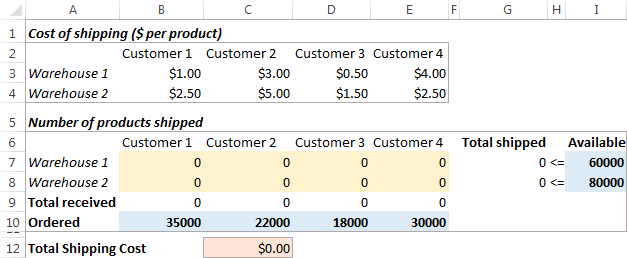
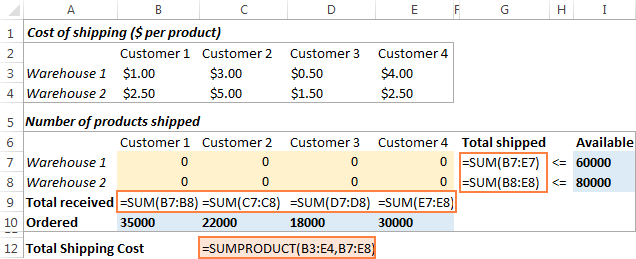
    right here is how our transportation optimization difficulty feels like:Transportation optimization model
    Formulating the mannequin
    To outline our linear programming difficulty for the Excel Solver, let's reply the 3 leading questions:


  • What are the choices to be made? We are looking to calculate the most reliable amount of items to convey to every consumer from each warehouse. These are Variable cells (B7:E8).
  • What are the constraints? The components available at each warehouse (I7:I8) can not be handed, and the quantity ordered by using each customer (B10:E10) should be delivered. These are restricted cells.
  • what's the intention? The minimal complete cost of shipping. And here's our purpose telephone (C12).

  • The subsequent aspect that you can do is to calculate the overall quantity shipped from every warehouse (G7:G8), and the entire items bought by using every consumer (B9:E9). which you could do that with standard Sum formulas proven in the below screenshot. also, insert the SUMPRODUCT components in C12 to calculate the full charge of shipping:Formulating the model using Excel formulas
    To make our transportation optimization mannequin simpler to take into account, create the following named degrees:
    range identify Cells Solver parameter Products_shipped B7:E8 Variable cells purchasable I7:I8 Constraint Total_shipped G7:G8 Constraint Ordered B10:E10 Constraint Total_received B9:E9 Constraint Shipping_cost C12 objective
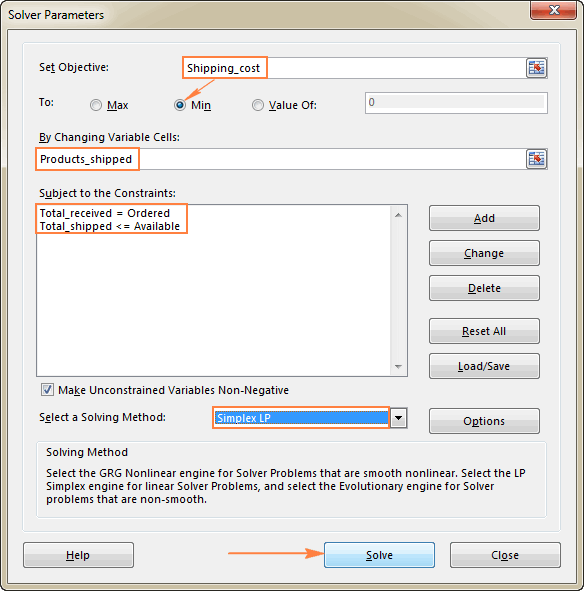
    The closing thing left that you can do is configure the Excel Solver parameters:


  • purpose: Shipping_cost set to Min
  • Variable cells: Products_shipped
  • Constraints: Total_received = Ordered and Total_shipped <= accessible

  • Configure the Excel Solver parameters.
    Please pay consideration that we now have chosen the Simplex LP fixing formulation during this instance as a result of we are coping with the linear programming issue. in case you don't seem to be bound what sort of issue yours is, you can depart the default GRG Nonlinear solving method. For more suggestions, please see Excel Solver algorithms.
    answer
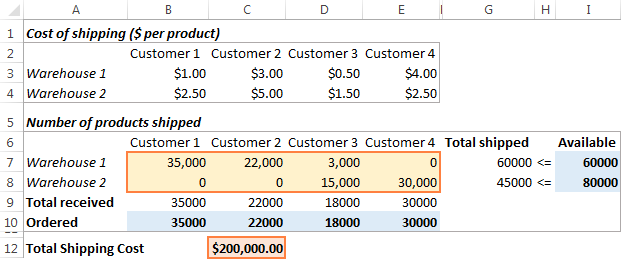
    click on the solve button at the bottom of the Solver Parameters window, and you will get your reply. in this illustration, the Excel Solver add-in calculated the finest amount of items to deliver to each and every consumer from every warehouse with the minimal complete charge of transport:The optimal solution for a linear programming problem.
    the way to retailer and cargo Excel Solver situations
    When fixing a certain mannequin, you can also want to shop your Variable phone values as a situation that you should view or re-use later.
    as an example, when calculating the minimal provider charge in the very first example mentioned during this tutorial, you may additionally are looking to are attempting different numbers of projected valued clientele monthly and notice how that affects the provider cost. At that, you may additionally need to retailer the most probably scenario you will have already calculated and restore it at any moment.
    Saving an Excel Solver scenario boils down to choosing a number of cells to store the records in. Loading a Solver mannequin is just a be counted of featuring Excel with the range of cells where your mannequin is saved. The detailed steps observe under.
    Saving the model
    To save the Excel Solver scenario, perform here steps:


  • Open the worksheet with the calculated model and run the Excel Solver.
  • in the Solver Parameters window, click the load/keep button.Saving the Excel Solver scenario
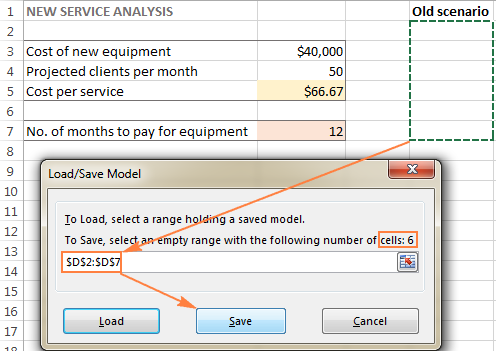
  • Excel Solver will let you know what number of cells are necessary to shop your scenario. opt for that many empty cells and click on keep:Select the specified number of empty cells and click the Save button.
  • Excel will store your existing mannequin, which might also seem to be some thing akin to this:

  • The current Excel Solver scenario is saved.
    on the identical time, the Solver Parameters window will exhibit up the place that you could alternate your constraints and try diverse "what if" alternatives.
    Loading the saved mannequin
    when you decide to fix the saved situation, do the following:


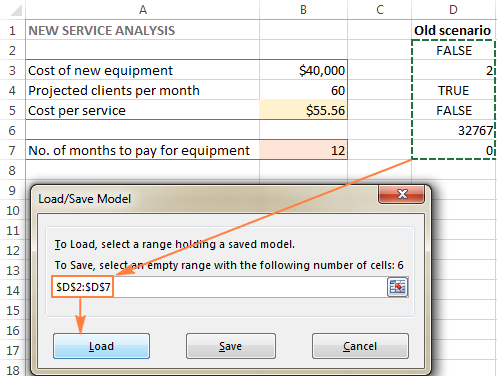
  • within the Solver Parameters window, click on the weight/save button.
  • On the worksheet, choose the latitude of cells holding the saved model and click on Load:Select the range of cells containing the saved model and click Load.
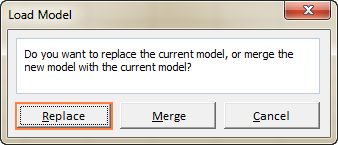
  • in the Load mannequin dialog, click the substitute button:Click Replace to load the saved scenario.
  • this can open the main Excel Solver window with the parameters of the in the past saved model. All you should do is to click the resolve button to re-calculate it.
  • Excel Solver algorithms
    When defining an issue for the Excel Solver, which you could choose certainly one of right here methods in the select a solving method dropdown field:


  • GRG Nonlinear. Generalized decreased Gradient Nonlinear algorithm is used for issues that are smooth nonlinear, i.e. wherein at least one of the crucial constraints is a easy nonlinear function of the resolution variables. more details can also be found here.
  • LP Simplex. The Simplex LP fixing method is based the Simplex algorithm created via an American mathematical scientist George Dantzig. it is used for solving so called Linear Programming problems - mathematical fashions whose requirements are characterized via linear relationships, i.e. consist of a single goal represented through a linear equation that have to be maximized or minimized. For greater suggestions, please take a look at this page.
  • Evolutionary. it's used for non-clean issues, which are probably the most problematic type of optimization issues to solve because one of the capabilities are non-smooth or even discontinuous, and therefore or not it's tricky to check the route during which a characteristic is expanding or reducing.  For more suggestions, please see this page.

  • To change how Solver finds an answer, click on the alternatives button in the Solver Parameters dialog container, and configure any or all alternatives on the GRG Nonlinear, All methods, and Evolutionary tabs.
    this is how to use Solver in Excel to discover the most desirable options to your choice issues. And now, you may additionally wish to download the Excel Solver examples discussed during this tutorial and reverse-engineer them for enhanced figuring out. I thank you for studying and hope to see you on our blog subsequent week.

    Learn Advance Statistics Training in Excel